Understanding Security State
Introduction
Ali wants to have actionable information. In this lab, you will make sure Ali has a quick way to find how his Applications are doing from security point of view. Ali wants to be comfortable while navigating the Dashboard so he knows what kind of information is readily available to him.
AppDynamics Application Dashboard
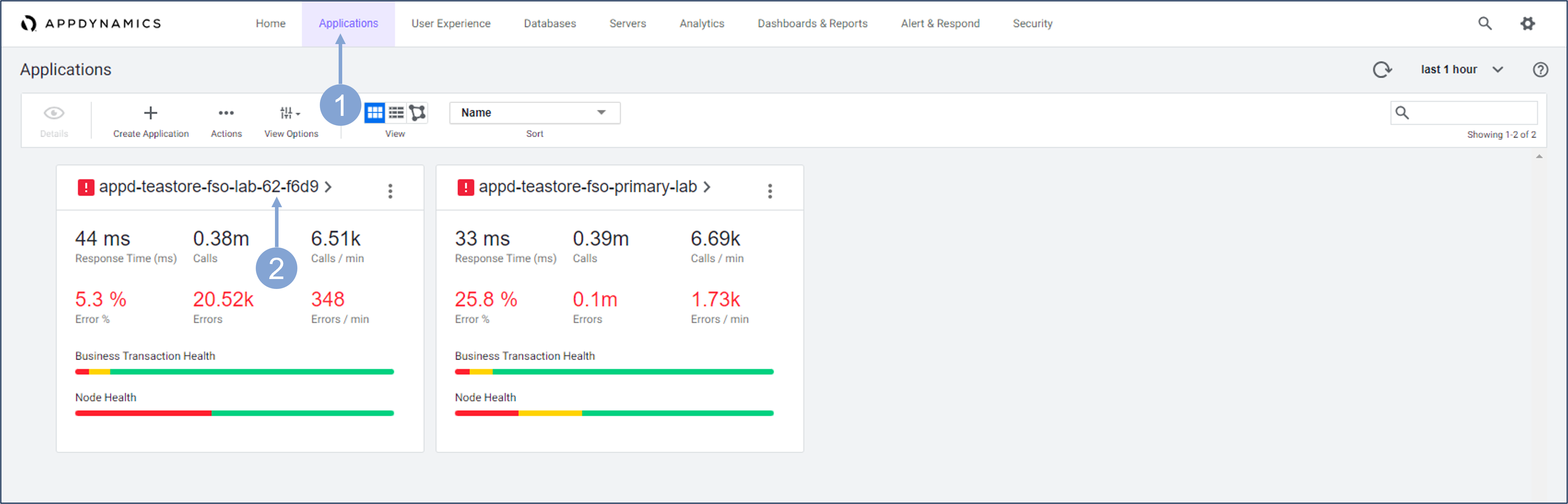
Use the steps below to navigate to your TeaStore application.
- Click on the Applications tab on the top menu
- Find your TeaStore application with your lab number in the name and click on its name to open it
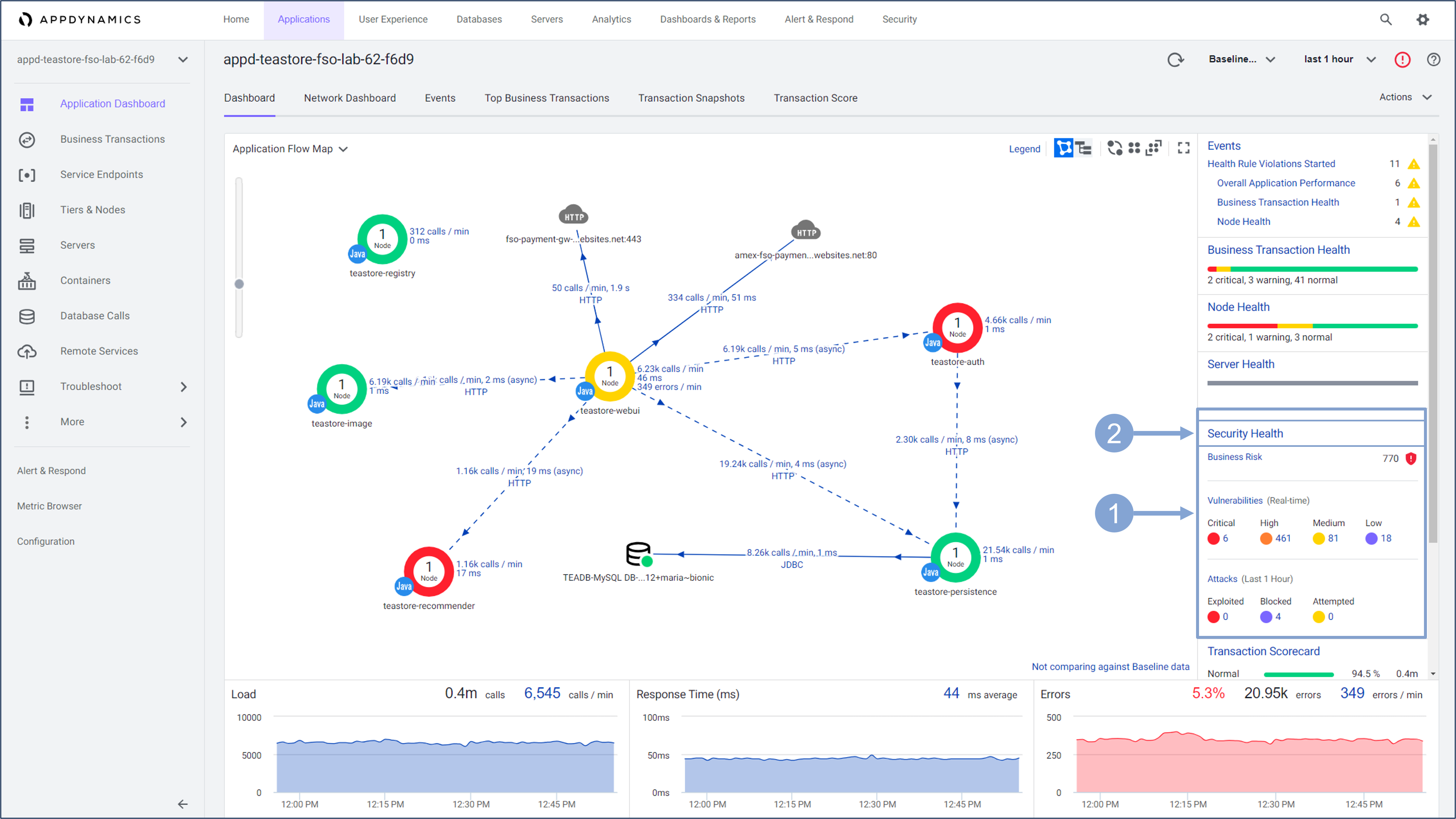
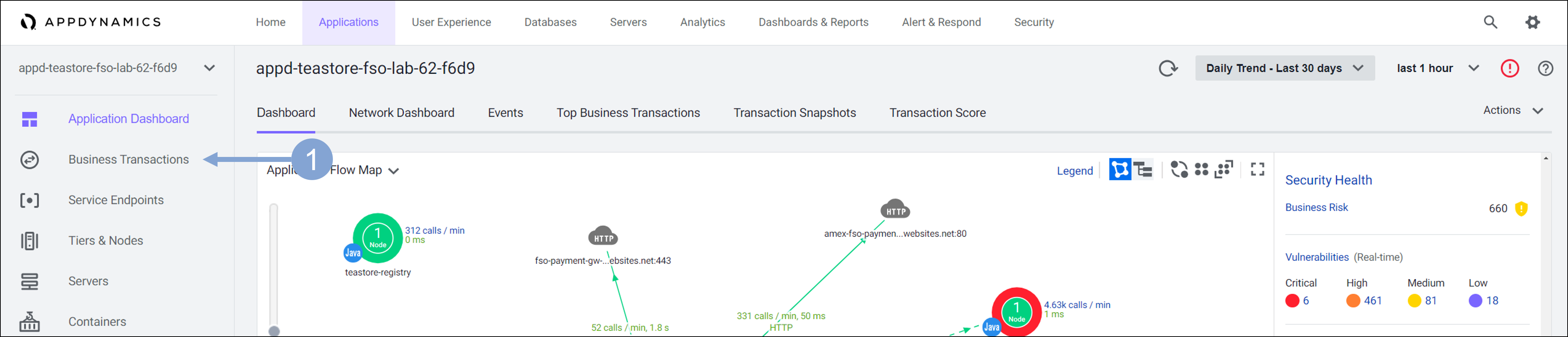
The Application Dashboard displays showing the components that comprise the TeaStore application.
- The Security Health widget displays the Business Risk Score in real time, the number of vulnerabilities divided by criticality, and the number of attacks that either compromised the security of your application, were blocked by the CSA attack policy, or the malicious activity was detected but not exploited.
- Click on the Security Health link to launch the Secure Application dashboard
CSA Home Dashboard
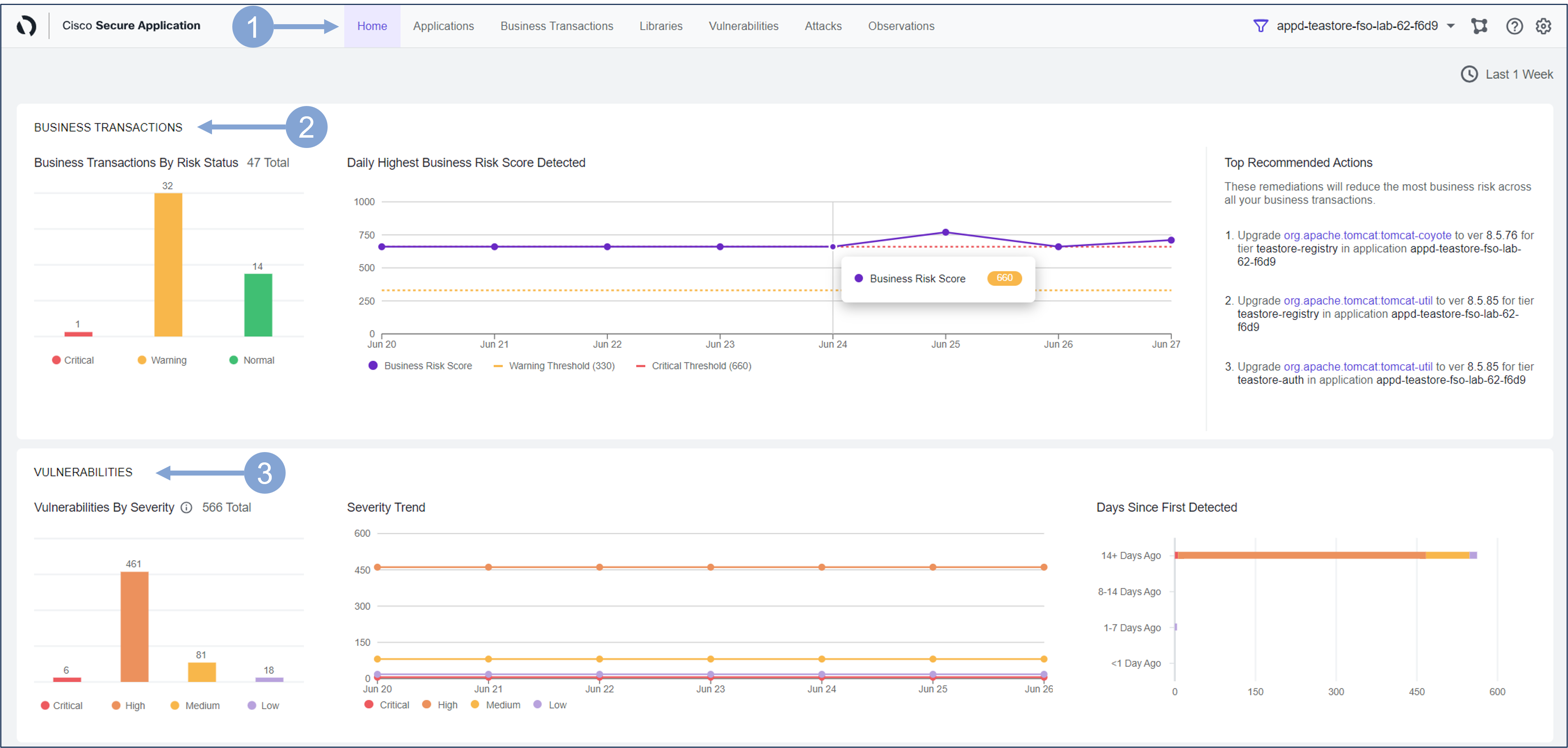
The Home page provides a high-level overview of Attacks and Vulnerabilities of the monitored application.
Navigate to the Home page by clicking the Home tab on the top menu
The Business Transactions pane shows the number of business transactions based on their risk status detected, alongside the daily Busines Risk Score, and Top Recommended Actions.
- There are 3 business risk statuses based on the score:
- Normal: 0-330 Warning: 340-660 Critical: 670-1000
- There are 3 business risk statuses based on the score:
The Vulnerabilities pane shows the number of both Open and Fixed vulnerabilities.
- The chart in the left represents the total number of vulnerabilities based on their risk score.
- The color of the chart displays the number of vulnerabilities for different severity levels:
- Critical = Red High = Orange Medium = Yellow Low = Purple
- Severity Trend shows the number of security vulnerabilities by severity in a given period.
- Days Since First Detected shows the number of days since the vulnerability has been open and its severity level.
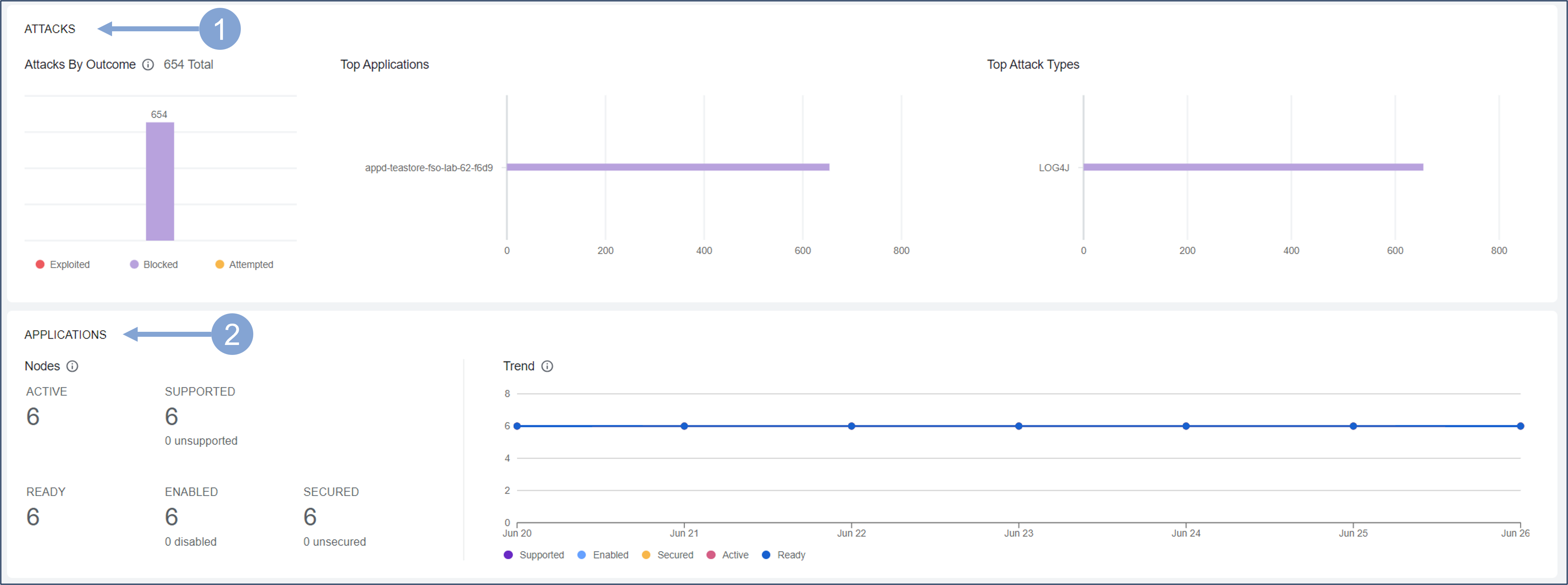
Scroll down the screen to see the Attacks and Applications pane.
The Attacks pane displays the number of Attacks by Outcome, Top Applications and Top Attack Types.
- The chart on the left shows the total number of Open attacks and their states:
- Exploited = Red Blocked = Purple Attempted = Yellow
- Top Attack Types displays the top 10 attack events in different states (exploited, blocked or attempted)
- The chart on the left shows the total number of Open attacks and their states:
The Applications pane displays the nodes of the application in question and the trend
- Total Active Nodes Total number of APM nodes that are registered and active in the AppDynamics controller.
- Supported Nodes Number of Active nodes that are running a Secure Application supported version of the agent.
- Ready Nodes Number of Supported nodes that are sending heartbeats to the Secure Application service.
- Enabled Nodes Number of Ready nodes that have a Security Setting value of Enable.
- Secured Nodes Number of Enabled nodes that are sending security insights to the Secure Application service.
Next, you’ll learn an alternative way to get into security monitoring while keeping an eye on the application performance dashboard.
- If you are in the CSA dashboard, scroll up and click the icon next to the name of your application
- Alternatively, you can return to the AppDynamics APM Controller and open your application’s dashboard as you did in the first step.

The application dashboard is the main source of information about application performance, but it also serves as a starting point when you want to look at other aspects of application observability, in your case application security. Previously, you used the Security Health widget to get into the CSA dashboard. Now you’ll see that you can examine the performance and business risk of the application’s business transactions in a single view, and then dive deeper into security as needed.
- Click on Business Transactions menu button.
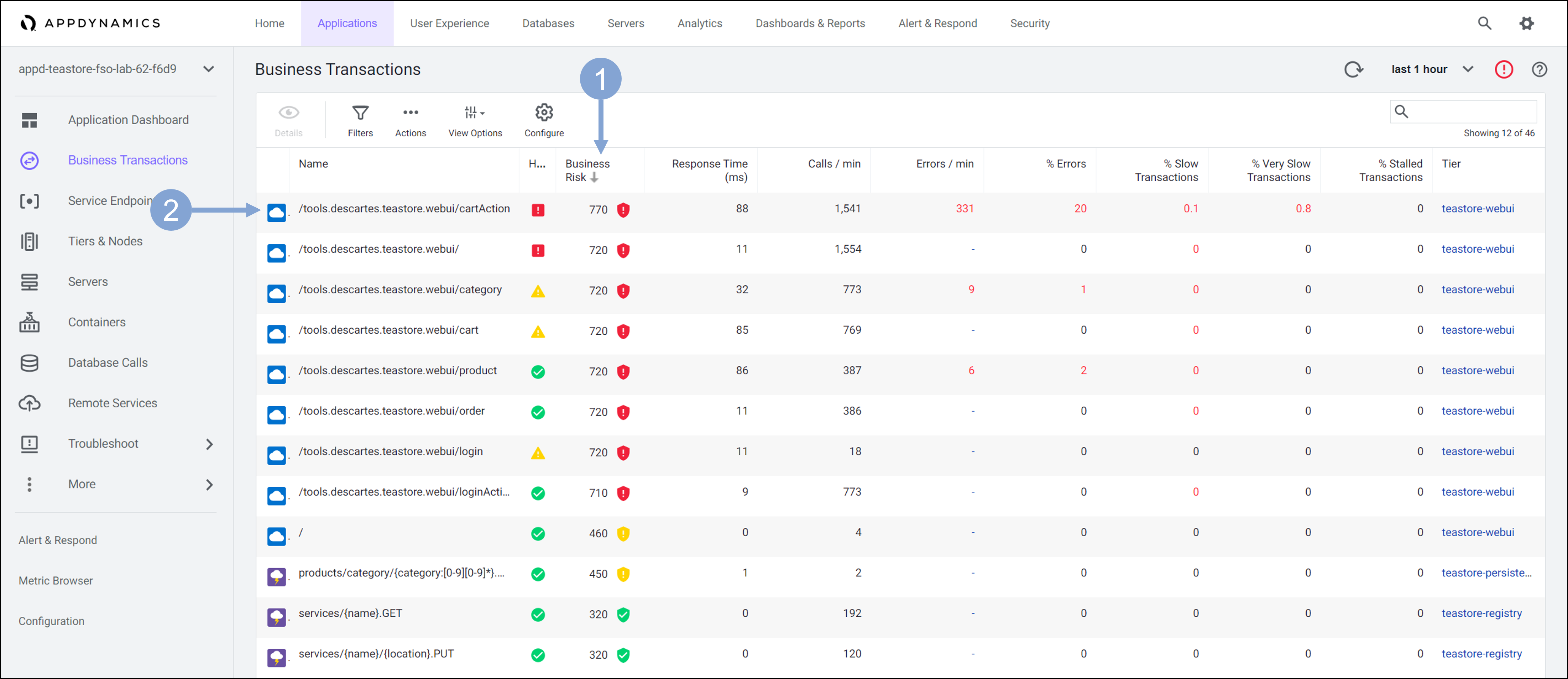
Business transactions are key objects when it comes to monitoring application performance. But they also involve business risk associated with each of those transactions. AppSec teams can use this to decide if there is a security risk associated with any of the important business transactions.
- Click the Business Risk column heading to sort transactions by business risk in descending order.
- Double click on the business transaction with the highest business risk
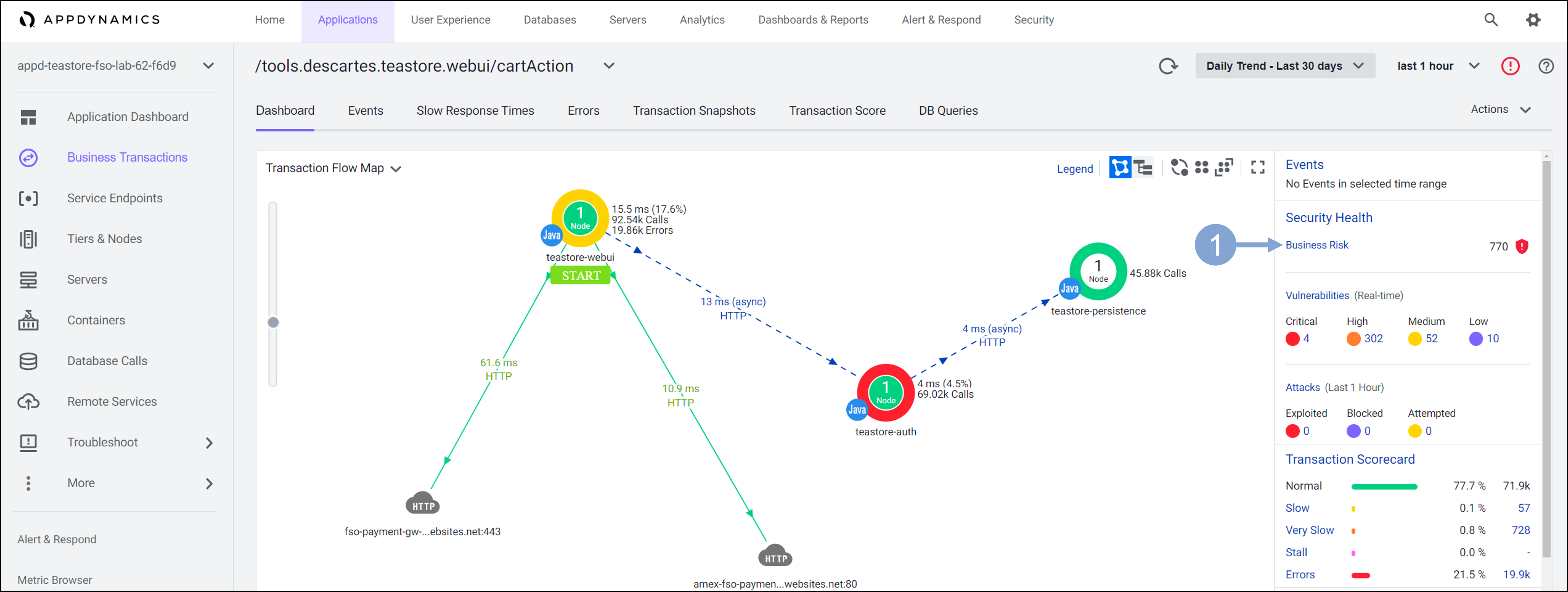
The following view focuses only on the selected business transaction.
- Click on the Business Risk link within the Security Health widget.
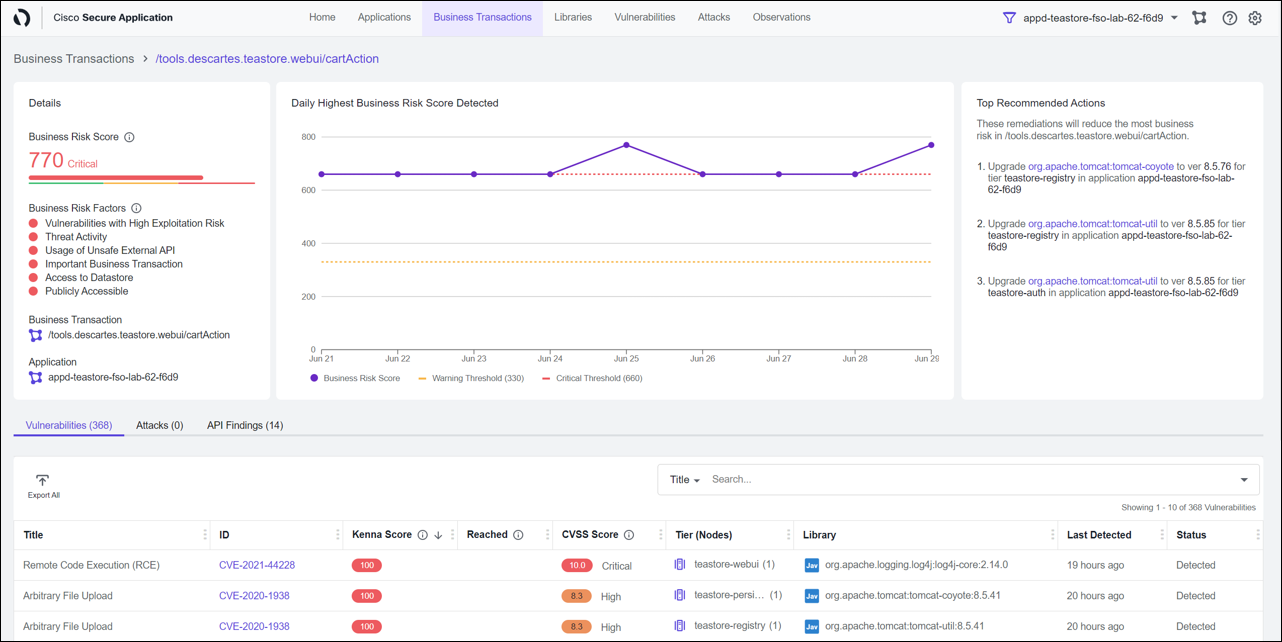
From monitoring the performance of business transactions of the application, you quickly moved to business risk observability, where you can see the details about the security risk of business transactions, the associated vulnerabilities, attacks and options to address the risk.
You will learn more about Business Risk Observability and its features in later exercises.
Summary
Just by looking at the Home page of his Secure Application Dashboard, Ali has not only learned about his application and it’s security state but he also has actionable information.
- Number of Open Vulnerabilities, their severity levels and the lifespan of those open vulnerabilities
- The business impact of vulnerabilities based on the Business Risk Score
- Open attacks that needs to be fixed and their states
- Top Applications with open attacks and event types
- Nodes of the application(s) that needs to be enabled and secured
Next
You’ll look at how Cisco Secure Application easily enables Attack Detection and Prevention for your business crititcal applications.